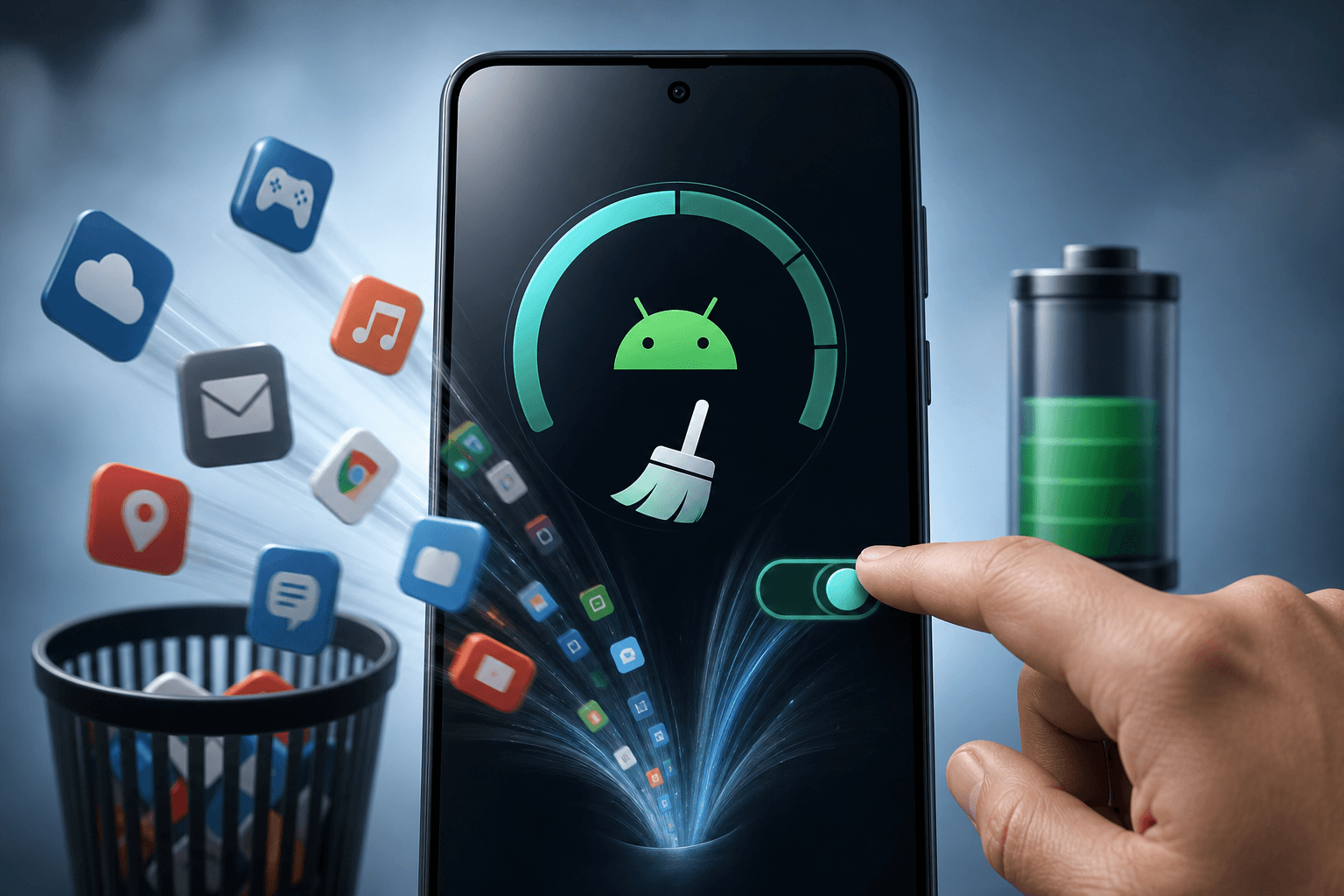
The most direct way to stop apps running in the background on Android is to use the Force Stop option in Settings, but for a lasting solution, you should restrict background activity in the app's battery settings or enable Adaptive Battery to let Android manage this automatically.
These built-in tools are the most effective ways to regain control over your device's performance and battery life without installing third-party apps. This approach provides faster battery drain prevention insight and gives you better awareness of system behavior so you can keep your phone running optimally.
This guide will explore multiple methods to manage background apps on your Android device. You will learn how to manually stop running applications, set permanent restrictions, use system-wide battery optimization features, and understand manufacturer-specific settings.
Understanding Background Apps on Android
Before diving into the how-to, it helps to understand what background apps actually are and why they exist.
What Are Background Apps on Android?
When you swipe an app away from your recent apps screen, you might assume it is closed. In many cases, the app status changes from active to closed, but some of its key background processes can continue to run silently. This background activity serves many purposes. A messaging app needs to stay active to deliver push notifications instantly. A music player must continue playing audio even when the screen is off. Navigation apps need to provide turn-by-turn directions while your phone is in your pocket. An app uploading a large file to Google Drive can continue this process in the background while you use other foreground apps.
Understanding this behavior helps you identify apps consuming battery even when not in use, which is the first step toward taking control.
Why Do Apps Continue Running After You Close Them?
Android apps are designed to run background services for a few key reasons. The primary reason is to provide a seamless user experience, like receiving a message without having to open the app. Apps also run in the background to sync data, update content, and track your location. This constant background activity is what allows for real-time push notifications and other convenient features. However, this can lead to unnecessary RAM and CPU usage and continuous hidden system activity that you may not even notice until your phone starts slowing down.
Which Android Apps Commonly Run in the Background?
Many running applications run background processes, but some are more aggressive than others. Apps that frequently sync data, like social media platforms (Facebook, Instagram, TikTok), email clients, and news aggregators, are common culprits. Messaging apps like WhatsApp or Telegram run constantly to deliver instant push notifications. Meanwhile, navigation apps like Google Maps and Waze may track your location in the background. Many pre-installed system applications from your carrier or manufacturer often run persistently, with higher process priority due to their system-level background execution behavior.
Identifying Background App Activity
To fix a problem, you must first identify it. Android provides several straightforward tools to monitor which apps are using resources.
What Signs Indicate That a Background App Is Consuming Excessive Resources?
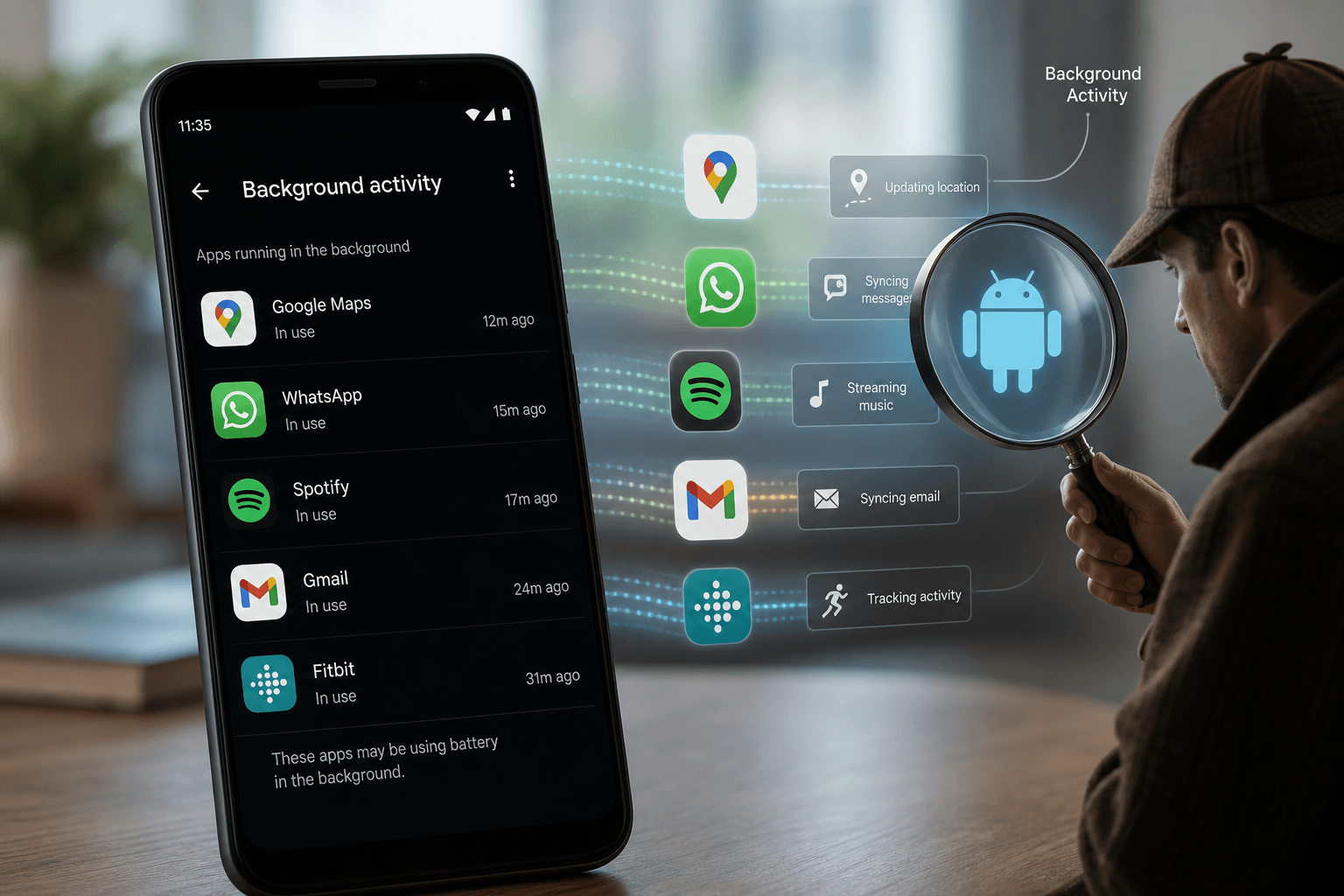
- Rapid battery drain — one of the most noticeable signs, indicating a high battery consumption rate
- High device temperature — if your phone feels warm while you are not using it, a background app could be the cause
- Noticeable lag or stuttering — when opening other apps or using the home screen, indicates that resources are being overtaxed
- High data usage — if your mobile data is consumed quickly, background data usage is often the culprit
How Do You View Active Apps in Android Settings?
Follow these steps on a standard Android device:
Open the Settings App
Access your Android Settings from the home screen or notification shade.
Tap on Battery
Find and tap the Battery option in your Settings menu.
Select Battery Usage
Tap Battery Usage or Battery Usage by App (wording varies by device).
Tap an Individual App
Select any app to see a breakdown of its foreground and background battery usage. Look for apps with high background time relative to foreground usage.
How Can You Use Developer Options to Monitor Background Processes?
For a more detailed, real-time view, you can enable Developer Options. This menu includes a tool called Running Services, which shows every process currently active on your phone, including memory usage for system processes and individual apps, their running status, process priority, and system impact. This is an advanced tool best used for troubleshooting specific issues. For most users, the Battery Usage screen is sufficient.
⚠ Key insight: Look for apps with high background usage but very little foreground time. These are the apps silently draining your battery even when you are not actively using them.
Stopping Background Apps Manually
Sometimes, you need an immediate fix. Here is how to stop an app on the spot using two different methods.
How Do You Close Background Apps from the Recent Apps Screen?
The classic method is to open the Recent Apps screen (usually by swiping up from the bottom or tapping the square icon) and swiping away the app cards. This generally stops the app from running its main process. However, this may not stop all background services for that app. In fact, swiping away apps constantly can cause your phone to work harder when you reopen them, potentially using more battery. This method provides quick improvement in device responsiveness but is not a permanent solution.
How Can You Force Stop an App on Android?
Force Stop is a more aggressive and effective way to shut down an app. Here is how to do it:
Open Settings
Navigate to your Android Settings app.
Go to Apps or App Management
Find the Apps section in Settings. It may be labelled App Management or Application Manager depending on your device.
Find and Tap the App
Scroll through the list or use the search function to locate the specific app you want to stop.
Tap Force Stop
Tap the Force Stop button on the app's info page. A confirmation dialog will appear.
Confirm by Tapping OK
Confirm the action. The app will be completely terminated immediately.
An app is misbehaving, freezing, or stuck. A streaming app is buffering endlessly. An app is temporarily consuming a lot of power for no apparent reason.
It does not provide a permanent solution. The app will restart its background processes as soon as you launch it again. Some apps can even restart automatically via system triggers.
Restricting Background Activity for a Permanent Fix
For a permanent solution, you need to restrict an app's ability to run in the background at all. This is the most effective long-term approach.
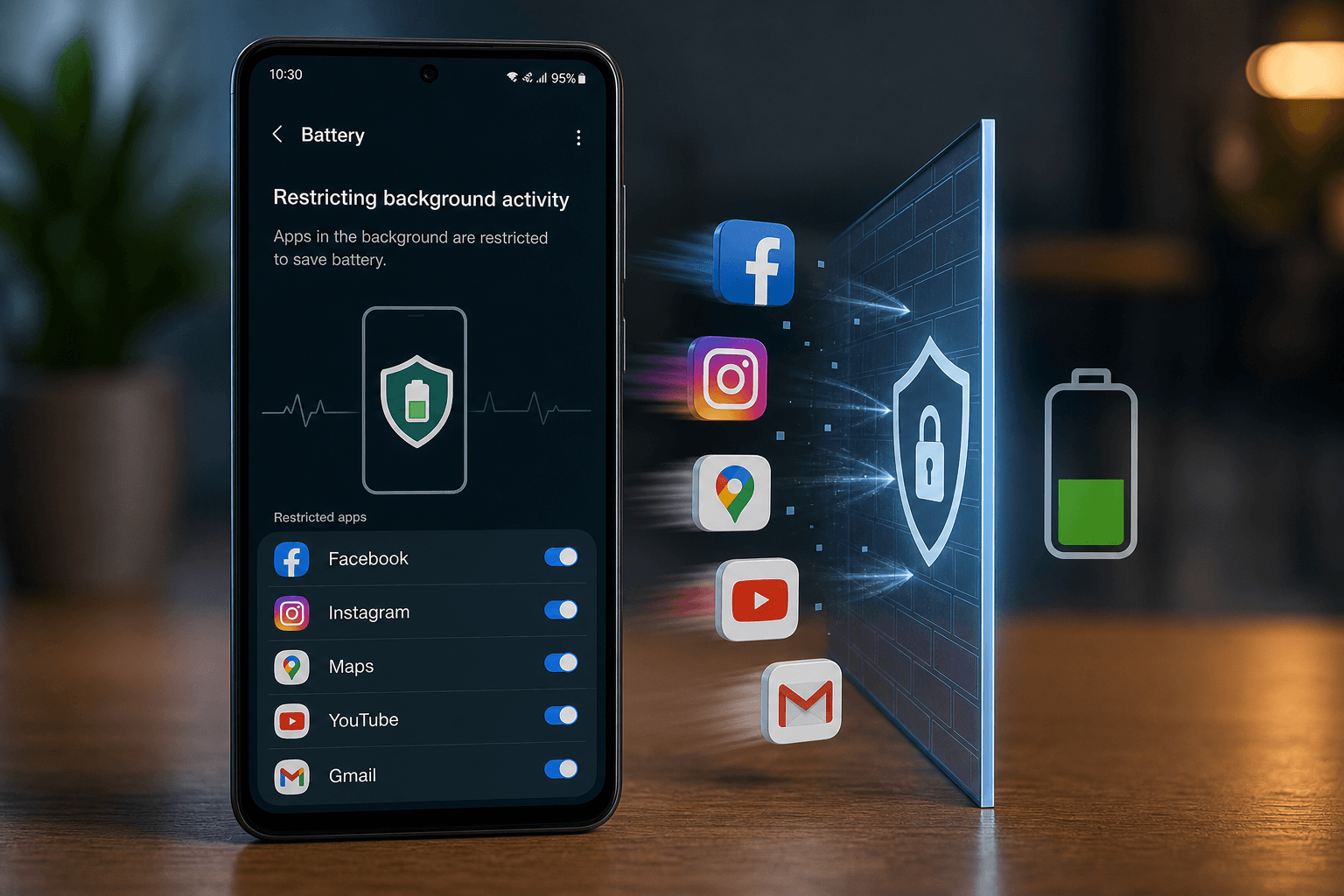
How Do You Restrict Background Activity for Specific Apps?
The most effective long-term solution is to change an app's battery settings to Restricted:
Go to Settings > Apps
Open Settings and navigate to the Apps section.
Select the App You Want to Restrict
Find and tap the specific app you want to prevent from running in the background.
Tap on Battery
Find the Battery option within the app's settings page.
Choose the Restricted Option
Select Restricted. This tells Android that the app cannot run background services at all. It will only operate when you are actively using it on screen.
How Can You Disable Background Data Usage for Apps?
You can also stop apps from using background data to save both mobile data and battery:
- Go to Settings > Apps
- Select the app
- Tap on Mobile data & Wi-Fi
- Toggle off the Background data switch
This prevents the app from sending or receiving any data when you are not actively using it — especially useful for news or social media apps that frequently refresh their content.
How Do Background Restrictions Differ Across Android Versions?
The core functionality is similar across versions, but the menus have been refined over time. On Android 9 and older, this setting is often found under Data Usage or Background Data. Newer versions, especially Android 12 and later, have unified these controls under the Battery menu for each app. Regardless of your version, you can achieve better control over app behavior with the right settings.
Using Battery Optimization Features
Android has powerful, automated systems to manage background activity for you. Understanding and enabling these features is one of the most effective strategies available.
How Does Android Battery Optimization Work?
Android uses a system called Doze Mode to reduce background activity. Doze Mode is activated when your phone is not being moved or used for a period of time. It restricts most apps from accessing the network and performing CPU-intensive tasks, allowing your device to sleep deeply and conserve battery life. The power reduction during Doze Mode is significant, and the automation ensures this happens without any user intervention.
How Can You Enable Battery Optimization for Individual Apps?
Android automatically optimizes most apps. You can verify and manage this setting:
- Go to Settings > Apps
- Select an app and tap Battery
- Confirm the setting is on Optimized — this is the default and recommended setting for almost all apps
How Do Adaptive Battery Features Reduce Background Activity?
Adaptive Battery uses Google's machine learning to predict which apps you will use and which you will not. It then restricts background activity for apps you rarely use. Over time, it learns your habits — an app you open once a week will be restricted aggressively, while an app you use daily will have full background access. This automation means you do not have to micromanage every single app.
To enable Adaptive Battery:
- Go to Settings > Battery > Adaptive Battery
- Toggle the switch to On
🔌 Real-world result: Restricting just five specific background apps on a Google Pixel 9 improved overnight battery retention from 65–70% to 80–90% — a dramatic improvement without any hardware changes.
Which Apps Should Be Excluded from Battery Optimization?
Some apps need to run in the background constantly to function as intended. Do not restrict or optimize these:
- Messaging Apps: WhatsApp, Telegram, Signal, SMS (essential for push notifications)
- Email Applications: Gmail, Outlook (for real-time email alerts)
- Alarm and Clock Apps (restricting these can cause missed alarms)
- Launcher / Home Screen (for smooth navigation)
- Google Play Services (do not restrict or force stop)
Managing Background Processes on Different Android Devices
Android manufacturers often customize their settings menus and add their own battery management features. Here is how to find the right controls on the most popular devices.
| Device Brand | OS / UI | Path to Background Controls | Key Feature |
|---|---|---|---|
| Samsung | One UI | Settings > Battery and Device Care > Battery > Background Usage Limits | Sleeping Apps & Deep Sleeping Apps |
| Google Pixel | Stock Android | Settings > Battery > Battery Usage > tap app > Allow background usage | Adaptive Battery deeply integrated |
| Xiaomi / Redmi | MIUI / HyperOS | Settings > Apps > Manage Apps > tap app > Battery Saver | No restrictions / Optimized / Restrict |
| OnePlus | OxygenOS | Settings > Battery > Battery Usage by App > tap app | Smart Mode for balanced optimization |
How Do You Stop Background Apps on Samsung Phones?
Samsung's One UI has robust management tools with three categories: Sleeping Apps (restricted after a few days of inactivity), Deep Sleeping Apps (completely restricted and cannot run until opened — the most aggressive option), and manually added apps. Navigate to Settings > Battery and Device Care > Battery > Background Usage Limits and add apps to either list as needed.
How Do You Stop Background Apps on Google Pixel Devices?
Google Pixel devices run Stock Android and rely heavily on the built-in Adaptive Battery. Go to Settings > Battery > Battery Usage, tap an app to see its usage breakdown, and toggle Allow background usage off for apps that are draining your battery. Google recommends keeping Adaptive Battery and Battery Optimization turned on for the best overall experience.
How Do You Stop Background Apps on Xiaomi Phones?
Xiaomi's MIUI and HyperOS are known to be very aggressive with background apps by default. Go to Settings > Apps > Manage Apps, select an app, and tap Battery Saver to choose from No restrictions, Optimized, and Restrict. Be careful on Xiaomi devices — they can sometimes restrict important apps too aggressively, leading to missed push notifications.
How Do You Stop Background Apps on OnePlus Devices?
OnePlus uses OxygenOS with a Smart Mode for background activity. Go to Settings > Battery > Battery Usage by App, tap an app, and choose from Allow Background Activity, Smart Mode (the default), or Restrict Background Activity. Smart Mode is a good balance, as it optimizes activity only when consumption is high.
Using Developer Options for Advanced Background Process Control
For advanced users, Developer Options offers an even more powerful tool: limiting the total number of background processes running simultaneously.
How Do You Enable Developer Options on Android?
The process is identical on all Android devices:
- Go to Settings > About Phone
- Find Build Number
- Tap on Build Number seven times. You will see a countdown message, then a notification that you are now a developer.
How Can You Limit Background Processes Through Developer Options?
Once Developer Options is enabled:
- Go back to the main Settings menu
- Enter System > Developer Options
- Scroll down to the Apps section
- Tap Background process limit
- Choose a limit, such as At most 4 processes
Older phones with limited RAM (2–4GB) that struggle to keep up with modern apps. This is a particularly effective method for older devices where free memory is scarce.
You have a newer flagship phone. Setting the limit too low means your phone cannot multitask effectively, and important background services for your launcher or keyboard may be killed unexpectedly.
Best Practices for Managing Background Apps
Managing your apps wisely means finding the right balance between device performance and the convenience you need from your applications.
Which Apps Should Remain Active in the Background?
Keep these apps unrestricted at all times for the best experience:
- Messaging Apps — WhatsApp, Telegram, Signal, SMS (for push notifications)
- Email Applications — Gmail, Outlook (for real-time email alerts)
- Alarm and Clock Apps
- Launcher / Home Screen (for smooth navigation)
- Google Play Services — never restrict or force stop this
Which Apps Are Safe to Restrict?
The following categories have high battery-saving potential and low impact when restricted:
- Social Media — Facebook, Instagram, TikTok, X (Twitter)
- Games
- Shopping Apps — Amazon, eBay
- News Aggregators
- Travel Apps — airline or hotel booking apps
- Less frequently used apps — if you open it manually to check something, you do not need it running in the background
How Often Should You Review Background App Permissions?
A good routine is to review your Battery Usage list once a month. This helps you spot new apps that are consuming a lot of power. It is also a good habit after installing several new apps at once. Regular reviews promote smarter app usage habits and prevent unnecessary system disruption before problems develop.
Security and Privacy Considerations
Managing background apps is not just about performance and battery life — it is also an important step toward better digital privacy.
Can Background Apps Collect Data Without Active Use?
Yes. An app with Location Services permission can track your whereabouts even when closed. An app with Camera or Microphone permissions could, in theory, access them in the background (though Android enforces increasing restrictions on this, especially in newer versions). Understanding which permissions each app holds is essential for protecting your privacy.
How Can Restricting Background Apps Improve Privacy?
By stopping an app from running in the background, you prevent it from tracking your location, scanning for Wi-Fi networks, or reading your sensor data. The most significant permissions to review are Run at startup, Ignore battery optimizations, Location, Camera, and Microphone — these are gateways to continuous background data collection.
How Can You Review App Permissions Related to Background Activity?
Go to Settings > Apps, select an app, and tap Permissions. Review the permissions list and revoke any that seem excessive for the app's function. Regular reviews ensure improved user privacy protection and reduced unwanted data tracking over time.
Performance Optimization Tips
Beyond managing background apps directly, several additional settings can compound your battery and performance gains significantly.
Enable Adaptive Battery
Go to Settings > Battery > Adaptive Battery and toggle On. This is the single most impactful setting for long-term battery optimization.
Turn on Power Saving Mode When Needed
Power Saving Mode reduces CPU speed, limits background sync, and dims the screen to extend battery life when you need it most.
Turn Off Wi-Fi and Bluetooth Scanning
Apps can use Wi-Fi and Bluetooth scanning to approximate your location even without GPS. Disable these under Settings > Location > Wi-Fi and Bluetooth scanning.
Reduce Unnecessary Notifications
Go to Settings > Apps, select an app, and tap Notifications. Disable channels you do not need. Fewer notifications mean fewer background wake-ups for your processor.
Clear App Cache Regularly
Go to Settings > Apps, select an app, tap Storage, and tap Clear Cache. This frees up storage and can fix apps that are misbehaving due to corrupted cache files.
Reduce Animation Scales (Developer Options)
In Developer Options, reduce Window animation scale, Transition animation scale, and Animator duration scale to 0.5x or Off. This makes your phone feel noticeably faster without any hardware change.
How Android Manages Background Apps Automatically
Understanding how Android's own systems work gives you insight into why certain manual steps are more effective than others.
How Does Android Manage Memory Automatically?
Android uses a technique called Low Memory Killer (LMK). When your device runs low on RAM, Android automatically closes the least important background processes to free up memory for the foreground app. This is an automatic and essential feature that prevents your phone from freezing. Apps are placed into priority buckets — the app you are currently using has the highest priority, recent apps are next, and background apps that have been idle for a long time have the lowest priority and are the first to be closed when memory is needed.
How Do Doze Mode and App Standby Affect Background Apps?
Doze Mode is activated when the phone is at rest and the screen is off. It severely restricts network access and CPU usage for all apps. App Standby is similar but applies to individual apps that have not been used for a long time. Both features are designed to save battery without requiring manual intervention. The standby management and power-saving capability of these features make them essential for extending battery life.
How Do Push Notifications Rely on Background Activity?
Push notifications require a persistent connection to a server (like Google's Firebase Cloud Messaging). The app's background service listens for these signals and displays the notification when one arrives. Understanding this explains why fully restricting certain apps causes missed alerts — the background connection that delivers notifications is severed. Apps with high notification dependency should always remain set to Optimized or Unrestricted.
How Do Widgets Affect Background Processes?
Widgets require a background service to stay updated. A weather widget must periodically request new data, and a calendar widget must update to show the current day. This is another reason to remove widgets you do not use actively. Each widget adds to the pool of background processes running on your device.
Troubleshooting Background App Issues
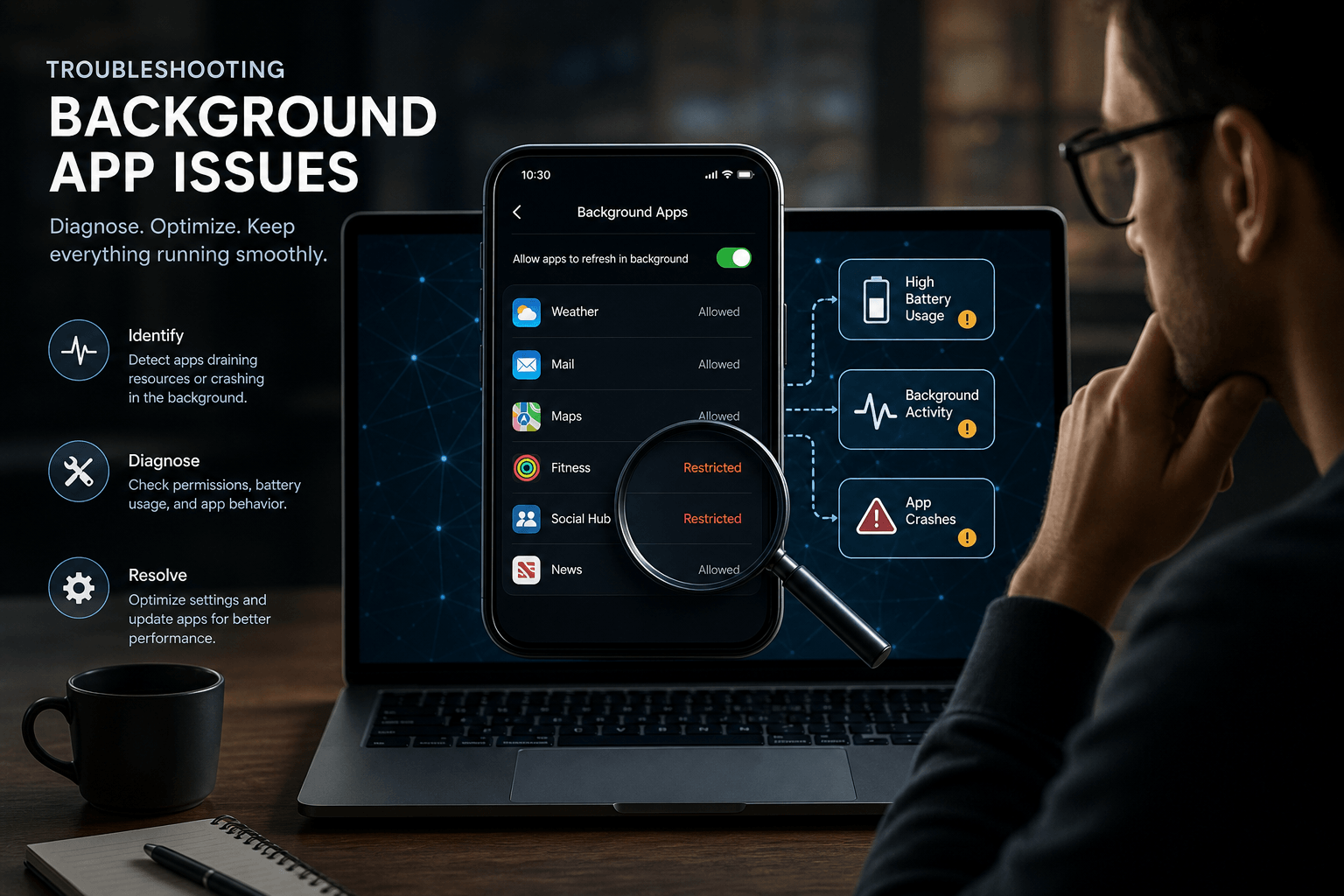
Even with restrictions in place, you may encounter persistent background activity. Here is how to diagnose and resolve common problems.
Why Do Some Apps Restart Automatically After Being Stopped?
Apps can be restarted by Android's own activity management system, or if they have a Wake Lock permission. Some apps are also designed to receive a broadcast from the system (like a network change) and will restart to handle the event. A persistent app that keeps restarting could indicate malware, but it is often just a poorly coded app. For these cases, the Restricted setting in battery options is more effective than Force Stop, since it prevents the app from starting in the first place.
Why Do Background Apps Continue Running Despite Restrictions?
Some system-level apps or Google Play Services have higher privileges and cannot be fully restricted — these are necessary for the phone to function correctly. Also, ensure you have selected Restricted in the app's battery settings, not just Optimized. The difference is significant: Optimized allows some background activity, while Restricted prevents it entirely.
What Should You Do If a Background App Affects Phone Performance?
- Identify the app using Settings > Battery > Battery Usage
- Force Stop it for an immediate effect
- Restrict its background activity for a long-term fix
- If the problem persists and the app is not essential, consider uninstalling it entirely
📱 Is your app or website experiencing performance issues? Our team at Webperts specializes in Digital Marketing and Mobile App Development — from identifying bottlenecks to building optimized, high-performance digital products for businesses in the UAE.
Frequently Asked Questions
Force stopping provides a temporary boost when an app is actively draining power. However, if the app is well-behaved and just sitting in memory, force stopping it provides no benefit. Real long-term battery gains come from using the Restricted or Optimized settings, which prevent the app from restarting its background processes automatically.
Yes, absolutely. If you Force Stop or restrict the background activity of a messaging app or email application, you will not receive push notifications in real time. You will only receive them after you open the app manually. Always keep messaging apps set to Optimized or Unrestricted to avoid missing important messages.
It is generally not recommended. While it will not damage your phone, restricting messaging apps like WhatsApp, Telegram, or Signal will prevent you from getting instant push notifications, which defeats their primary purpose. Keep messaging apps set to Optimized or Unrestricted for the best experience.
Yes, it can significantly improve performance. By limiting background processes, you free up RAM and CPU resources, which can make a noticeable difference on older phones with limited hardware. Limiting the total number of background processes via Developer Options is particularly effective for devices with 2–4GB of RAM.
Go to Settings > Battery > Battery Usage. Look for apps that show a high percentage of background use relative to their foreground use — meaning you barely used them but they consumed significant battery. These are your background battery drainers, and they are the best candidates for restriction.
Apps can restart via Android's activity management system, a Wake Lock permission, or by listening for system broadcast events like network changes. For persistent restarters, use the Restricted setting in battery options rather than Force Stop alone, as this prevents the app from launching its background services in the first place.
Social media apps (Facebook, Instagram, TikTok, X), games, shopping apps (Amazon, eBay), news aggregators, travel apps, and any app you open manually to check rather than needing real-time alerts from are safe to restrict. These categories have high battery-saving potential with minimal impact on how you use them.
Adaptive Battery uses Google's machine learning to predict which apps you will and will not use. It then restricts background activity for apps you rarely open. Over time it learns your habits — an app you open once a week gets restricted aggressively, while a daily-use app retains full background access. Enable it under Settings > Battery > Adaptive Battery.
Get Expert Help with Website and App Optimization
Managing app performance is not just about smartphones — it is a critical aspect of website and software development too. If you are a business owner or developer looking to optimize your digital presence, the strategies of a skilled team can make all the difference.
Whether you need a high-performance mobile app built from scratch or a comprehensive digital marketing strategy that drives measurable results, the Webperts team has the expertise to deliver. Our comprehensive approach to digital audits helps ensure your online assets run as efficiently as a well-optimized Android phone.
Ready to Optimize Your Digital Presence?
Submit your website for a full, in-depth audit. Our experts will identify performance bottlenecks and deliver a clear action plan.
Request Your Free Audit →