What Are Instagram Privacy Settings & Why They Matter
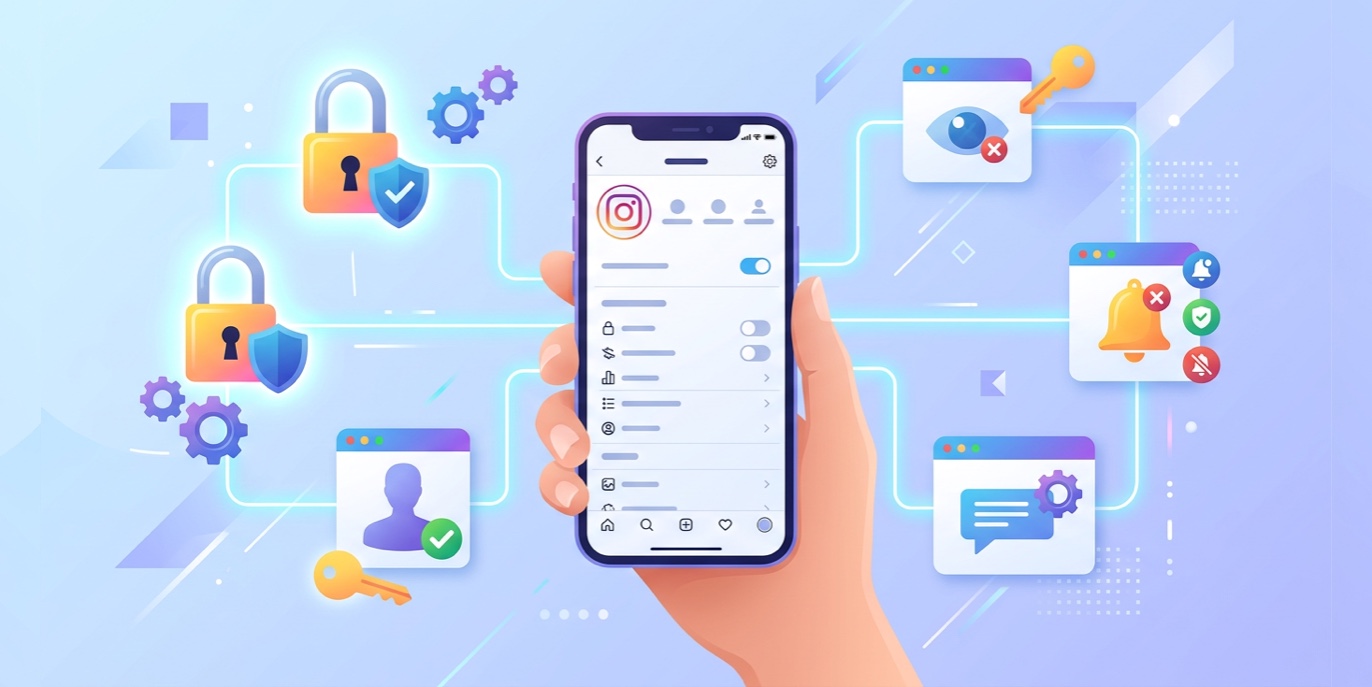
Instagram Privacy Settings are the controls that decide your visibility scope — who can see you, who can interact with you, and how much of your personal data is available to others. Think of them as the locks and curtains on the windows of your digital home.
Every day, millions of people share posts, stories, and reels featuring their families, locations, and daily routines. Without proper settings, this information is visible to strangers, data collectors, and people with bad intentions. A public account means anyone on Instagram — and potentially anyone on the internet — can see your profile, save your photos, and track your activity.
How to access all settings: Profile → Menu (☰) → Settings & Privacy → Privacy
How to Make Your Instagram Account Private
Making your account private is the single most impactful privacy change you can make. Only people you approve can see your posts, stories, and highlights.
Important: If you have a Business or Creator Account, you cannot make it private. You must first convert back to a Personal Account from Account type and tools.
Public vs Private — Pros & Cons
✅ Private Account
- Complete control over who sees your content
- Reduced spam and unwanted DMs
- Peace of mind sharing personal moments
- Lower harassment risk from strangers
❌ Private Account
- Limited discoverability — harder to grow
- Not suitable for businesses or creators
- Content cannot be shared publicly
- Follower requests can become tedious
How to Control Who Sees Your Posts, Stories & Reels
Story Privacy Controls
Instagram Stories offer the most flexibility. You can share with everyone, only your followers, or a custom close friends list.
All Followers
Only people who follow you can view your story. Default setting for private accounts.
Close Friends
Only people on your custom close friends list can view — perfect for personal moments.
Custom Audience
Manually choose specific people who can or cannot see your story.
Hide from Specific Users
Share with all followers but hide from specific people — they won't be notified.
Reels Visibility
Reels follow the same visibility rules as regular posts. If private, only followers see them. You can also turn off "Allow resharing to reels" in Privacy Settings to prevent others remixing your content.
Remove, Block, Restrict & Mute — Explained
Not every follower deserves access to your content. Instagram provides four ways to manage difficult or unwanted connections.
| Action | Notifies Them? | Can They See You? | Can They Comment? |
|---|---|---|---|
| Remove Follower | No | Depends on privacy | No (if private) |
| Block | No (but they notice) | No | No |
| Restrict | No | Yes | Yes (hidden) |
| Mute | No | Yes | Yes |
How to Control Comments, Mentions & Tags
Comment Controls
In 2026, Instagram introduced Hidden Words Feature 2.0 — AI that filters offensive language not just in comments but also in captions and audio transcriptions.
Mention & Tag Controls
You can set tags to require manual approval — meaning photos you're tagged in won't appear on your profile until you approve them. Go to Privacy Settings → Tags and toggle "Add to profile manually."
For mentions, go to Privacy Settings → Mentions and choose between Everyone, People you follow, or No one.
Direct Messages Privacy Settings
DMs are where many privacy issues begin. Strangers can send unsolicited messages, photos, and harassment. Here's how to take control.
Two-Factor Authentication & Account Security
Two-Factor Authentication (2FA) adds a second layer of protection beyond your password. Even if someone steals your password, they cannot access your account without your phone or authentication app.
Critical: According to cybersecurity experts, 2FA prevents the vast majority of account takeovers. A strong password alone is not enough — without 2FA, your security status remains "At Risk."
Checking Login Activity
Regularly check where your account is logged in. Hackers sometimes gain access and remain logged in without changing your password.
Go to Account Settings → Security Checkup → Login Activity. Look for devices you don't recognise, unusual locations, or login times when you were asleep. If you spot something suspicious, tap it and select "Log out."
Managing Data Sharing & Third-Party Apps
Every app you connect to Instagram is a potential privacy vulnerability. Review your connected apps regularly and remove anything you no longer use.
Ad Preferences & Data Control
In Account Settings → Ad Preferences, you can turn off "Personalised ads based on your activity from partners" — preventing Instagram from using off-platform data to target you. This limits how your data is used without reducing the number of ads you see.
Privacy Settings for Teens & Parents
Instagram automatically applies stricter privacy defaults for users under 18, including private accounts, message restrictions, and sensitive content filtering.
Under 16
Private account by default. Cannot switch to public without parent permission. Messages restricted to people they already follow.
Ages 16–17
Also private by default but can switch to public independently. Can manage most settings unless parent supervision is enabled.
Parent Supervision
Parents can monitor time spent, followers list, and privacy settings via Instagram's Family Center. Both parties must approve the connection.
Sleep Mode
Notifications automatically muted 10 PM–7 AM. Break reminders after extended use. Sensitive content filtered by default.
Best Privacy Settings for Maximum Security
Use this interactive checklist to track your progress. Click each item to mark it complete!
Default vs Recommended Privacy Settings
| Setting | Instagram Default | Recommended |
|---|---|---|
| Account Type | Often Public | Private |
| Activity Status | On (Visible) | Off (Hidden) |
| Two-Factor Authentication | Disabled | Enabled (App) |
| Comments | Allow All | People You Follow |
| Hidden Words | Basic | Advanced |
| Tag Approval | Allow Tags | Manual Approve |
| Message Requests | Enabled | Filtered/Disabled |
| Story Replies | Everyone | People You Follow |
| Third-Party Apps | As connected | Revoked (unused) |
Frequently Asked Questions
People can see your profile picture, username, bio, and follower count. They cannot see your posts, stories, or highlights unless you approve their follow request.
If your account is public, anyone can see your followers and following lists. If private, only your approved followers can see these lists.
Blocking hides your existing message history from that person. They no longer see the conversation in their inbox. However, blocking does not delete messages from Instagram's servers or screenshots they may have already taken.
No. Instagram does not show who views your profile. Any third-party app claiming to offer this feature is almost certainly lying and likely trying to steal your login information — do not connect them.
Instagram notifies users when you screenshot a story using the "View Once" feature. For regular stories, Instagram does not send notifications. For disappearing DM photos, Instagram does notify the sender if you screenshot.
No. Muting keeps you following them and them following you — they have no idea. You simply stop seeing their posts and stories in your feed. Great for maintaining a polite relationship without the noise.
Instagram begins removing your data immediately upon account deletion. Full removal across all backups can take up to 90 days under privacy regulations including GDPR.
This almost always means you have a Business or Creator account. Switch to a Personal account first: Account Settings → Account type and tools → Switch to personal account. Then you can enable private mode.
Common Instagram Privacy Mistakes
Secure Your Entire Digital Presence
Instagram privacy is just one piece of the puzzle. Your website, email, and all other platforms need the same level of protection. The Webperts team specialises in comprehensive digital security audits — going far beyond basic settings to identify vulnerabilities you never knew existed.
Get a Free Security Audit →